I Write on My Wall With My Finger Now. Here's How to Set It Up.
Air Writer turns a camera and a projector into hand tracking you can write with. How I built it in a weekend, and how to set it up yourself for free.
Just want the code? It's free and MIT licensed: github.com/Ishan-sa/air-writer
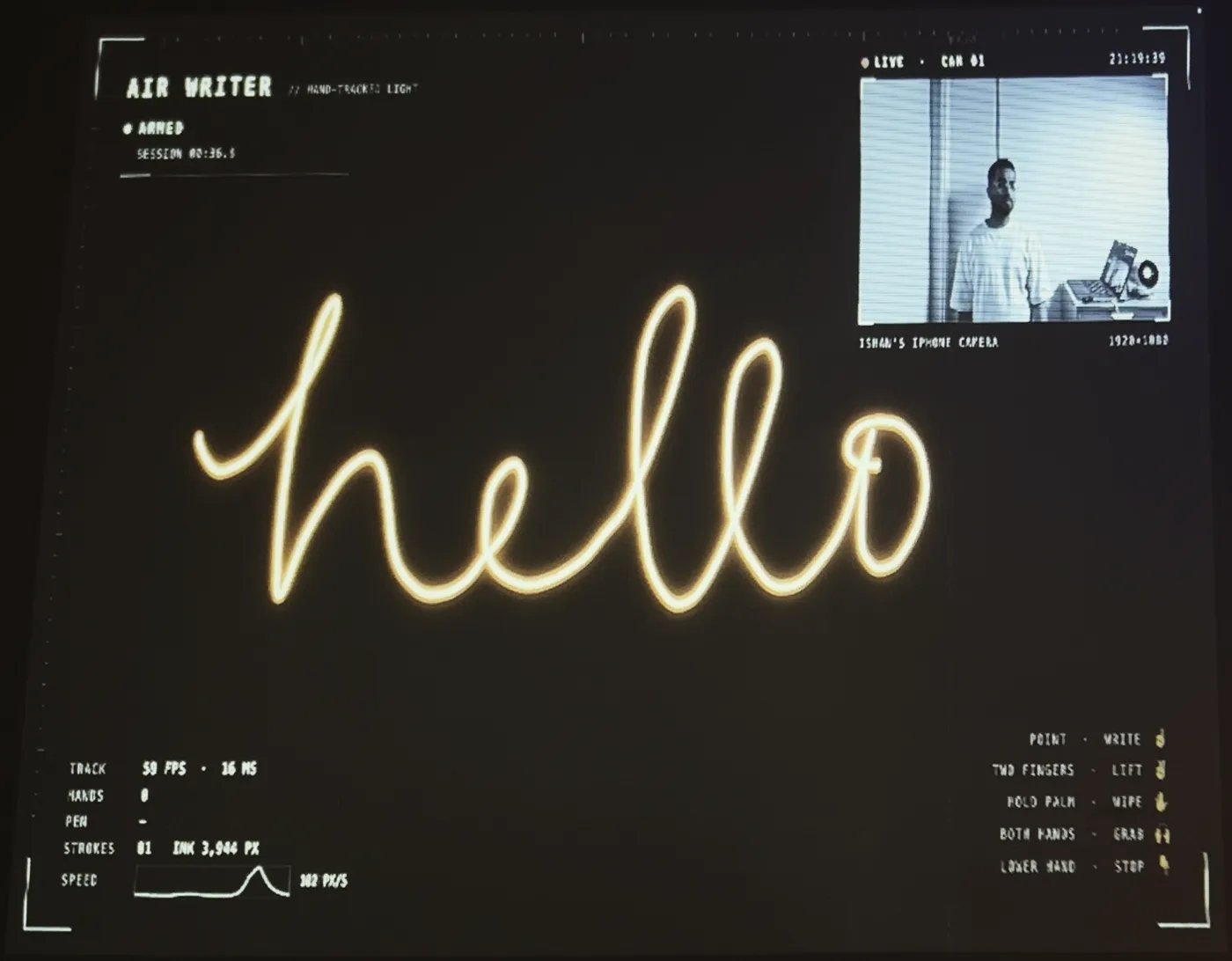
I point at my wall and write, and the words show up on it in glowing light.
A camera watches my hand and a projector draws wherever my finger goes. I built it over one weekend with Claude Code and called it Air Writer.
If you commented WALL on my reel, this is the setup guide I promised.
How Air Writer Turns Hand Tracking Into Ink
You need three things, and you probably have two of them already.
The first is a camera pointed at you. I use an iPhone, connected to my Mac through Continuity Camera, so the browser treats it like any webcam.
The second is Chrome running Google's MediaPipe hand tracker. It finds 21 points on each hand about 30 times a second, and it runs on your laptop's GPU, so no video ever leaves your machine.
The third is a projector showing a second browser window on the wall. That window draws sparkler-style ink wherever your index finger points, with little sparks coming off the tip.
There's no app to install and no account to make. The tracking model is part of the project, so it even works with the Wi-Fi turned off.
The Gestures That Make a Finger Feel Like a Pen
The tracker only gives you dots on a hand. Deciding what those dots mean took most of the weekend.
This is where I ended up:
- Start: hold an open palm up for half a second. Brackets close in on your hand, a scan line runs down the wall, and the pen lights up.
- Write: point your index finger.
- Lift the pen: raise your middle finger as well. It feels a lot like lifting a pen off paper between letters.
- Wipe: hold your palm up for a second, and a bright bar sweeps the ink off.
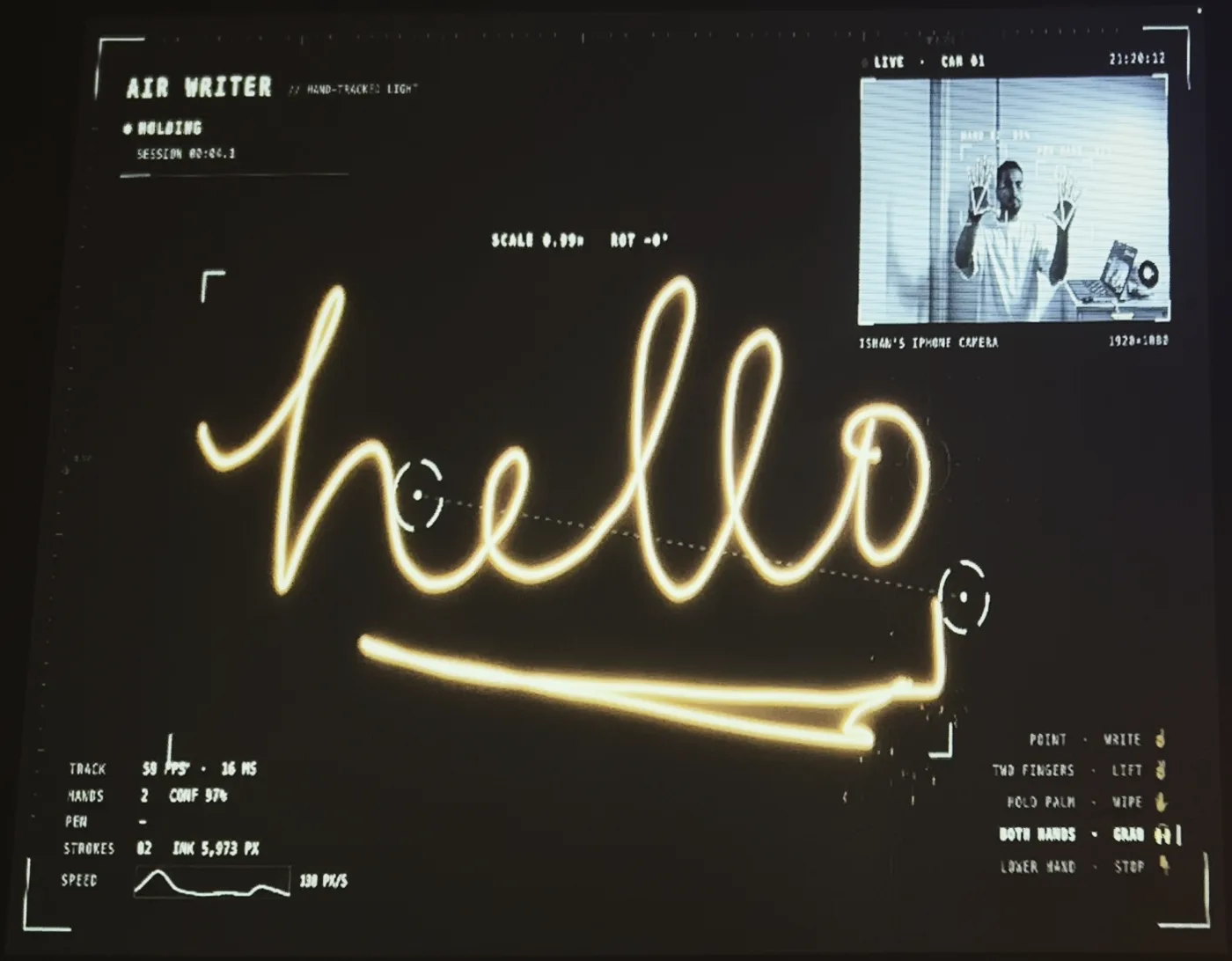
- Grab: put both hands up. Slide them, twist them or pull them apart to move, rotate or resize what you wrote.
- Stop: drop your hand out of view.
Around the writing there's a heads-up display. It shows the live camera with your hand's skeleton on top, how fast tracking is running, how sure the tracker is, and which gesture it thinks you're making. It looks like a movie prop, but none of it is fake: every number is live data from the tracker.
What You Need Before You Set Up Air Writer
- A computer with Google Chrome. Other browsers might work, but Chrome is what I tested the camera, the full-screen wall window and the glow effects on.
- A camera that can see you. An iPhone through Continuity Camera works, and so does any webcam Chrome can find.
- A projector pointed at a wall. A TV or a second monitor also works, it just doesn't look as cool.
- Node.js 20.19 or newer.
To check your Node version:
node -v
If that fails or shows something older, install the LTS version from nodejs.org, or run brew install node on a Mac with Homebrew.
Set Up Air Writer in Five Minutes
Clone the project and start it:
git clone https://github.com/Ishan-sa/air-writer.git
cd air-writer
npm install
npm run dev
Open http://localhost:5199 in Chrome and allow the camera. You should see yourself, with a skeleton drawn over your hand when it's in view. This is the control view, and it stays on your laptop.
Then:
- Connect the projector and set it to extend your desktop, not mirror it. On a Mac that's in System Settings, under Displays.
- Put the camera near the wall, facing you, at about chest height and 1 to 1.5 meters away from where you'll stand. It needs a clear view of your writing hand.
- Press W to open the wall window. If Chrome asks to manage windows on all your displays, allow it and the window moves to the projector by itself. Click it once so sound turns on, then press F for full screen.
- Press C to calibrate. The wall shows four targets, one corner at a time. Move your hand to each corner of the area you want to write in, point, and hold for half a second. It takes about 20 seconds, and it's saved until you move the camera, the projector or yourself.
- Hold your palm up for half a second, then start writing.
You can skip calibration. The ink will just be drawn big in front of you instead of exactly where you point.
For your first word, try "hello" in cursive, all in one stroke. It's easy to write in the air and it looks great on camera.
Make It Look Good on Camera
It works in five minutes. Making it look like the reel takes a bit more setup.
Lighting matters most. Turn the room lights down so the ink glows, but keep a small lamp on yourself from the wall side, otherwise the camera struggles to see your hand. During one of my tests the tracking fell from 30 frames a second to about 10 and the ink started trailing behind my finger, so the control view now warns you when that happens.
Put the projector up high or off to one side. If it's right behind you at shoulder height, your hand's shadow falls exactly where the ink shows up.
A projector can't show true black, so the projected area looks like a faint gray box on camera. You can fix that on the phone you're filming with: tap and hold on the glowing ink until AE/AF Lock shows up, then drag the exposure down. The ink stays bright and the box goes dark.
If you want a clean shot with only the ink, press H to hide the heads-up display and V to hide the camera window.
The Uncomfortable Part: The AI Was the Easy Bit
I expected the AI to be the hard part, and it was the easiest. Google gives the hand tracker away, and getting it running took a few lines.
What took real work was making a finger feel like a pen.
My first version kept breaking words at the bottom of letters. When I checked the logs, the reason was strange. As your hand moves down, your pointing finger tilts toward the camera, and the tracker starts to think a straight finger is curled. My finger hadn't changed shape at all, but it scored between 0.72 and 0.95 on my straightness measure, low enough to trip my "curl your finger to lift the pen" rule on almost every letter.
So I stopped using the index finger to lift the pen at all. Now it only lifts when a second finger goes up, which the camera reads clearly at any angle.
The next problem showed up when I sat down at my laptop between takes and my hands on the keyboard started writing on the wall. The logs helped again. Every real start had the palm held upright, scoring between 0.86 and 1, while typing hands lie sideways and scored under 0.5. A palm only counts now if it's held up.
In development mode the app saves every tracked frame to a log file. After each test I'd tell Claude Code what felt off, and it would find that exact moment in the logs and change the numbers based on what actually happened. That loop ran for about ten test sessions, and the project has 87 unit tests now.
My takeaway is that anyone can get a hand tracker running in an afternoon. Making it feel right takes a lot of small fixes, and each one needs data from a real hand.
If you're curious how I use Claude Code day to day, I wrote about how Skills and subagents replaced half my workflow.
When Air Writer Setup Goes Wrong
- No camera: allow Chrome in System Settings, then Privacy & Security, then Camera. An iPhone also needs the same Apple ID as your Mac, Wi-Fi and Bluetooth turned on, and to be close by.
- The ink lags: check the frames-per-second number. If it's under 20, put more light on yourself, and keep the control window visible on your laptop, because Chrome slows down windows that are covered.
- Shaky lines: your hand is too small in the camera's view. Move the camera closer and calibrate again.
- Ink in the wrong place: calibrate again from the exact spot you'll stand in.
- The picture doesn't fill the projector: on a Mac, turn Underscan off for the projector in Displays. On the projector itself, set the aspect ratio to Auto or 16:9, digital zoom to 100% and keystone to 0.
- No sound: click the wall window once. Browsers keep sound off until you click on the page.
Everything else, including every key and setting, is in the README at github.com/Ishan-sa/air-writer.
Now go point at a wall and write something.